

Alright, so you've just installed a replacement screen on your Note 20 Ultra, and now you're wondering how to make sure it's working properly. Well, you've come to the right place! As a Note 20 Ultra Replacement Screen supplier, I've seen it all, and I'm here to walk you through the testing process step by step.
1. Initial Visual Inspection
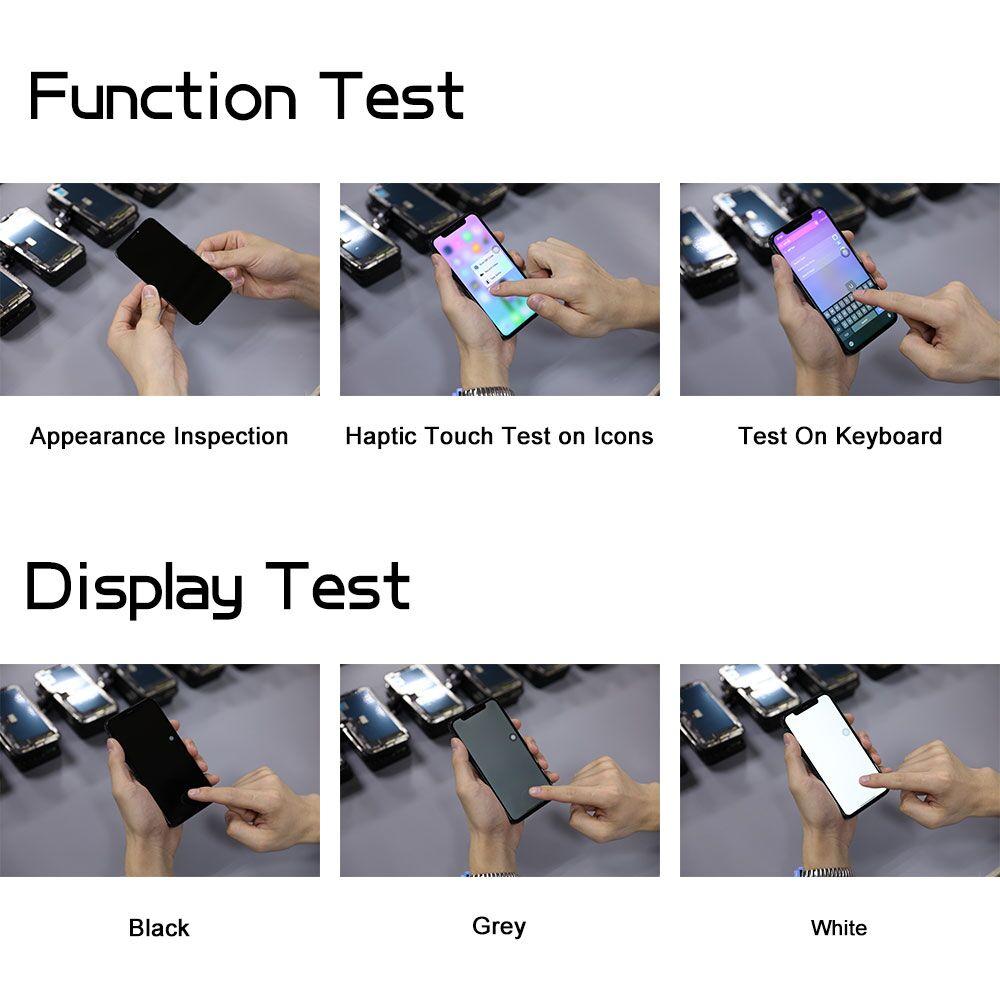
First things first, take a good look at the screen. Turn on your Note 20 Ultra and check for any visible defects. Look for dead pixels, which are tiny dots that don't light up or change color. You can do this by displaying a solid color screen, like white, black, red, green, or blue. You can easily find apps in the Google Play Store that can generate these solid color screens for you.
Also, check for any scratches, cracks, or unevenness in the display. Sometimes, during the installation process, the screen might get accidentally scratched, or it might not be installed flat. If you notice any of these issues, it's best to double - check the installation or reach out to us for a replacement Note 20 Display.
2. Touch Screen Responsiveness
The touch screen is one of the most important parts of your phone, so you gotta make sure it's working right. Start by opening up a simple text - editing app or a drawing app. Try tapping, swiping, and pinching on the screen. The response should be immediate and smooth.
If you're having trouble with the touch screen, it could be due to a loose connection during installation. Check the cables that connect the screen to the phone's motherboard. Make sure they're properly seated and not damaged. If the issue persists, it might be a problem with the replacement screen itself, and we're here to help you sort it out.
3. Display Brightness and Colors
Your Note 20 Ultra's screen should offer a wide range of brightness levels and vibrant colors. Navigate to your phone's settings and adjust the brightness. It should go from very dim to quite bright. If you notice that the brightness is stuck at a certain level or changes inconsistently, there could be an issue.
When it comes to colors, look at some photos or videos with a variety of colors. The colors should be rich, vivid, and accurate. If the colors seem off, like everything looks too blue or too yellow, it could be a calibration issue or a problem with the screen.
4. Screen Orientation
Test the screen orientation by rotating your phone. The screen should automatically rotate between portrait and landscape modes. If it doesn't, go to your phone's settings and make sure the auto - rotate feature is enabled. If it still doesn't work, there might be an issue with the gyroscope sensor, which can sometimes be affected during the screen replacement process.
5. High - Resolution Testing
The Note 20 Ultra has a high - resolution display, so it's important to test it at its max capacity. Watch a high - definition video on a streaming service or play a graphically demanding game. Make sure the text is sharp, and the images are detailed. If you notice any blurriness or pixelation at high resolutions, it could indicate a problem with the screen's quality.
6. Compatibility with Other Samsung Models
If you're interested in other Samsung devices as well, we also offer replacement screens for various models. For example, check out our Replacement Screen for Samsung S20 Plus. It's designed to meet the same high - quality standards as our Note 20 Ultra replacement screens.
We also have screens for the S24 Plus Screen, S21 Plus Screen Replacement, and Note 10 Lite Display. These screens are all rigorously tested to ensure they work perfectly with their respective devices.
7. Sound and Haptic Feedback
While testing the screen, don't forget about the other components. Some phones use the screen to transmit certain audio frequencies, and the haptic feedback is often integrated with the touch - screen functionality. Play a sound clip or a video with audio and make sure the sound quality is good. Also, when you tap or interact with the screen, you should feel a proper haptic response. If the sound is muffled or the haptic feedback is weak or non - existent, there could be a related issue.
8. Multi - Touch Testing
Most modern smartphones, including the Note 20 Ultra, support multi - touch. This means you can use multiple fingers on the screen at the same time. Try using two or more fingers to zoom in and out, perform a two - finger swipe, or use a multi - touch gesture in a supported app. If the screen doesn't recognize multiple touches correctly, it could be a sign of a faulty touch - screen controller.
9. Long - Term Testing
After the initial testing, use your phone normally for a few days. Pay attention to any issues that might only appear over time, like the screen becoming unresponsive after a certain amount of use or the colors fading slightly. If you encounter any problems during this long - term testing, don't hesitate to contact us.
Why Choose Our Replacement Screens?
Our Note 20 Ultra replacement screens are sourced from high - quality manufacturers. We make sure that each screen goes through a series of quality control checks before it reaches you. We understand how frustrating it can be to have a faulty screen, so we're committed to providing the best products.
Let's Get in Touch
If you've followed these testing steps and still have questions or if you're thinking about purchasing more replacement screens for your business or personal use, we'd love to hear from you. Reach out to us, and let's start a conversation. We're here to answer all your questions and make sure you get the best replacement screens for your devices.
References
- Samsung official documentation on phone screen features
- Mobile repair industry best practices for screen replacement and testing