

Are you an iPhone 12 user who's been noticing that your screen just doesn't look right? Maybe the colors seem off, or the brightness isn't as it should be. Well, you're not alone. A lot of folks run into these issues, and the good news is that calibrating your iPhone 12 screen can often fix these problems. As a Screen for Iphone 12 supplier, I'm here to walk you through the calibration process and share some tips to get the best display on your device.
Why Calibrate Your iPhone 12 Screen?
First off, let's talk about why you might want to calibrate your screen in the first place. Over time, the display on your iPhone 12 can start to show signs of wear and tear. Colors may become less vibrant, and the contrast might not be as sharp. Calibration helps to adjust these settings so that your screen looks as good as new. It can also improve your viewing experience when you're watching videos, playing games, or just scrolling through your social media feeds.
Another reason to calibrate is if you've replaced your screen. Whether you've installed a new Screen for Iphone 12 from us or had it replaced by a professional, calibration ensures that the new screen is working at its optimal level. This is crucial for getting the most out of your investment and enjoying a high - quality display on your device.
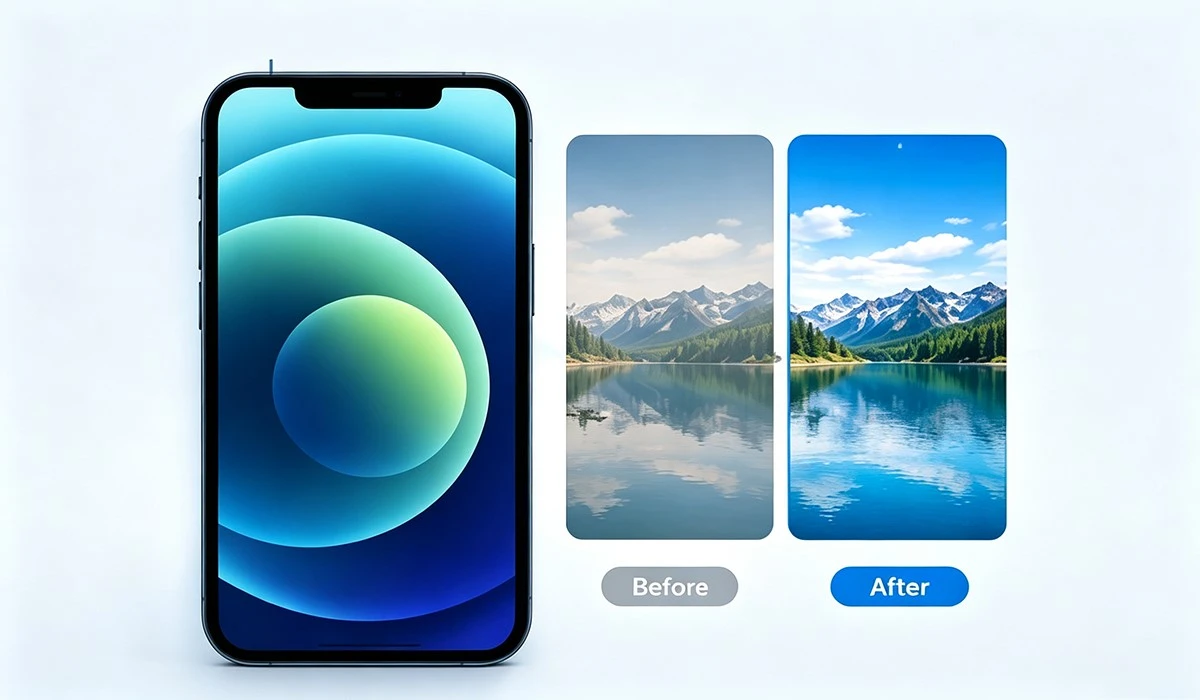
How to Calibrate Your iPhone 12 Screen
Step 1: Access the Display & Brightness Settings
To start the calibration process, go to your iPhone 12's "Settings" app. It's the little gear icon on your home screen. Once you're in the Settings, scroll down and tap on "Display & Brightness". This is where you'll find most of the settings related to your screen.
Step 2: Adjust the Brightness
The first thing you'll want to adjust is the brightness. You can do this manually by dragging the brightness slider up or down. If you prefer, you can also turn on "Auto - Brightness". This feature uses the ambient light sensor on your iPhone to adjust the brightness automatically based on the light around you. However, if you find that the auto - brightness isn't working well for you, you might want to stick with manual adjustment.
Step 3: Choose the Color Temperature
Next, let's talk about color temperature. In the "Display & Brightness" settings, you'll see an option called "True Tone". True Tone adjusts the color temperature of your screen to match the ambient light. It makes the colors on your screen look more natural, especially in different lighting conditions. If you don't like the way True Tone affects the colors, you can turn it off and adjust the color temperature manually. Just below the True Tone toggle, there's a color temperature slider that you can use to make the screen warmer (more yellow) or cooler (more blue).

Step 4: Check the Display Zoom
The display zoom setting can also affect how your screen looks. Go back to the main "Settings" page and tap on "Display & Brightness". Then, tap on "Display Zoom". You have two options: "Standard" and "Zoomed". The "Standard" setting shows more content on the screen, while the "Zoomed" setting makes everything a bit larger. Choose the option that's most comfortable for you.
Step 5: Use the Color Filters
If you still feel like the colors on your screen aren't quite right, you can use the color filters. Go to "Settings", then "Accessibility", and tap on "Display & Text Size". Scroll down to "Color Filters" and turn it on. You can choose from different color filter options, such as "Greyscale", "Monochrome", or custom color filters. These can be useful if you have color vision deficiencies or if you just want to change the look of your screen for a specific task.

Tips for Optimal Screen Performance
- Keep Your Screen Clean: A dirty screen can affect how the colors look. Use a soft, microfiber cloth to clean your iPhone 12 screen regularly. Avoid using harsh chemicals or abrasive materials that could scratch the screen.
- Update Your Software: Apple often releases software updates that include improvements to the display settings. Make sure your iPhone 12 is running the latest version of iOS to get the best screen performance.
- Protect Your Screen: Consider using a screen protector to prevent scratches and other damage to your screen. We offer high - quality Screen for Iphone 12 that come with durable screen protectors to keep your display in top condition.
Our Screen Products
As a Screen for Iphone 12 supplier, we have a wide range of screen options for your device. Whether you need a new screen because of a crack or just want to upgrade the display quality, we've got you covered. Our Screen for Iphone 12 are made from high - quality materials and are rigorously tested to ensure they meet the highest standards.
In addition to the iPhone 12 screens, we also offer other great products. For example, if you're an iPhone 17 Pro Max user, check out our Screen for Iphone 17 Pro Max. It's designed to provide a crystal - clear display and excellent touch sensitivity. We also have Display for Iphone 16 Pro Max and Screen for Iphone 16 Plus for those who own the latest models. And if you have an iPhone 15 Pro Max, our 15 Pro Max Display is a great option to enhance your viewing experience.
Connect with Us for Your Screen Needs
If you're interested in purchasing a new screen for your iPhone, whether it's an iPhone 12 or another model, we'd love to hear from you. We're here to help you find the right screen for your device and answer any questions you might have. Feel free to reach out to us to start a conversation about your screen requirements. We can provide you with detailed information about our products, pricing, and shipping options.
Calibrating your iPhone 12 screen is a simple process that can make a big difference in your viewing experience. By following the steps outlined above and taking good care of your screen, you can enjoy a vibrant and clear display on your device. And if you ever need a new screen, don't forget to check out our wide range of high - quality products.
References
- Apple Support: Information on iPhone display settings and calibration.
- Industry research on smartphone screen technology and performance.