

Hey there! As an iPhone screen supplier, I get a bunch of questions about iPhone screens. One hot topic that keeps popping up is how to adjust the color temperature on the iPhone screen. It's a pretty nifty feature that can make your viewing experience way better, whether you're reading an e - book at night or binge - watching your favorite shows. So, let's dive right in!
Why Adjust the Color Temperature?
First off, you might be wondering why you'd even want to adjust the color temperature. Well, different color temperatures can have a huge impact on your eyes and how you perceive the content on your screen. A warmer color temperature (more yellow - orange) is easier on the eyes, especially in low - light conditions like at night. It can also help you sleep better by reducing the amount of blue light your eyes are exposed to. On the other hand, a cooler color temperature (more blue - white) can make colors look more vibrant and sharp, which is great for things like watching movies or looking at photos during the day.
How to Find the Color Temperature Settings
On your iPhone, adjusting the color temperature is actually quite easy. Here's a step - by - step guide:
-
Go to Settings: Tap on the "Settings" app on your home screen. It's the gray icon with gears on it.
-
Display & Brightness: Scroll down and tap on "Display & Brightness". This is where most of the screen - related settings are located.
-
Night Shift: Now, you'll see the "Night Shift" option. Night Shift is Apple's way of adjusting the color temperature to a warmer tone, especially in the evening. You can turn it on manually by toggling the switch to the right. If you want it to turn on automatically, tap on "Schedule". Here, you can set it to turn on at sunset and off at sunrise, or you can choose custom times that work better for your schedule.
-
Color Filters: If you want more control over the color temperature, you can also use the "Color Filters" option. Go back to the main "Settings" page, then tap on "Accessibility". Scroll down and tap on "Display & Text Size", and then "Color Filters". Toggle the "Color Filters" switch on. You can choose from different presets like "Greyscale" or "Color Tint". The "Color Tint" option is great for adjusting the color temperature. You can move the sliders to change the hue, saturation, and intensity of the color.
-
Using Third - Party Apps
If the built - in settings aren't enough for you, there are also third - party apps available on the App Store. Apps like f.lux and Twilight can give you even more precise control over the color temperature. They can adjust the color temperature based on the time of day, your location, and even the ambient light around you. Just search for these apps in the App Store, download them, and follow the on - screen instructions to set them up.
Impact of Screen Quality on Color Temperature
Now, as a screen supplier, I can tell you that the quality of your iPhone screen also plays a role in how the color temperature looks. A high - quality screen will display the adjusted color temperature more accurately and vividly. That's why it's important to choose the right screen for your iPhone.
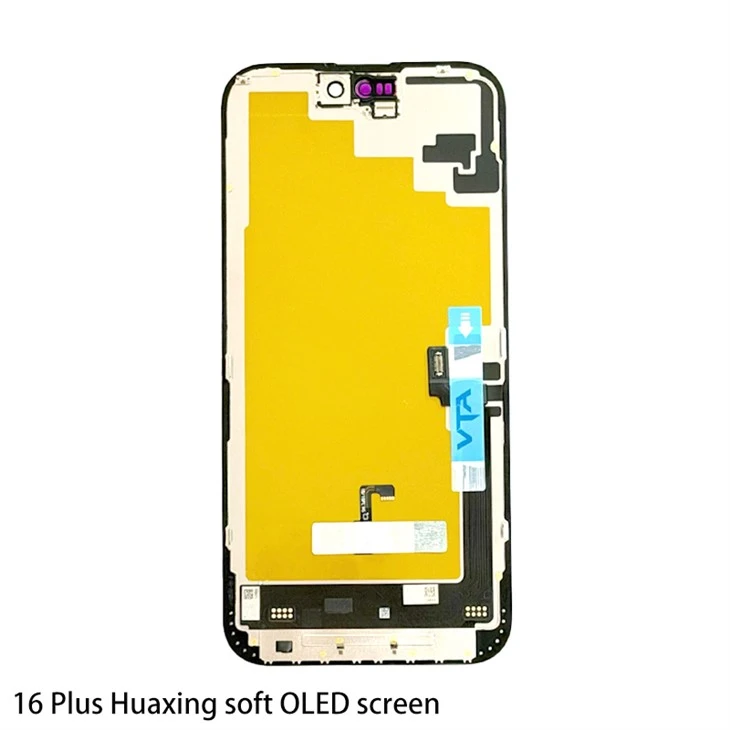
We offer a wide range of screens for different iPhone models. For example, if you have an iPhone 16 Plus, we have the Screen for Iphone 16 Plus. This screen is designed to provide a sharp and vibrant display, and it will accurately show the color temperature you set.
If you're an iPhone 15 user, our Screen for Iphone 15 is a great option. It's made with high - end materials to ensure long - lasting performance and excellent color accuracy.

For those with an iPhone 15 Pro, our Screen for Iphone 15 Pro is specifically tailored to meet the high standards of this premium device. It offers a seamless viewing experience and will make the color temperature adjustments look even better.
If you still have an older model like the iPhone 13, our Display for Iphone 13 can breathe new life into your phone. It will provide a clear and crisp display, enhancing the effects of the color temperature settings.
And for iPhone 14 Plus users, our 14 Plus Display is a great choice. It's designed to fit perfectly and offer a great viewing experience with accurate color representation.
Tips for Optimal Color Temperature
Here are some tips to help you get the best out of your color temperature adjustments:
- Match with Ambient Light: Try to adjust the color temperature to match the ambient light around you. For example, in the evening when the light is warm and soft, use a warmer color temperature on your screen. During the day when the light is bright and cool, a cooler color temperature will make your content look more vivid.
- Test Different Settings: Don't be afraid to play around with the settings. Try different color temperatures and see what works best for you in different situations like reading, watching videos, or playing games.
- Consider Your Eyes: Remember, the main goal of adjusting the color temperature is to make your viewing experience more comfortable for your eyes. If you start to feel eye strain, try changing the settings.
Contact Us for Your Screen Needs
If you're looking to replace your iPhone screen or just want to learn more about our products, we're here to help. Whether you need a high - quality screen that can accurately display different color temperatures or you have any questions about installation, our team of experts is ready to assist you. We strive to provide the best products and service to all our customers.
If you're interested in starting a conversation about your iPhone screen needs, feel free to reach out. We're eager to discuss your requirements and find the perfect screen solution for your iPhone. Let's work together to enhance your iPhone's display and make your viewing experience even better!
References
- Apple Support. (2024). Adjust the color and appearance on your iPhone.
- App Store descriptions for f.lux and Twilight.